Speak the play.
Show the card.
The local app listens for card calls and sends recognized cards to your overlay. Keep the conversation moving without reaching for an image folder.
YOUR VOICE. THEIR FRONT ROW.
Say a card’s name. Let your audience see it. Herald brings voice-triggered card overlays to OBS, so you can spend more time on the play and less time searching for art.
Custom libraries + Gudnak included · macOS tested · Python 3.12 or 3.13 required.
See setup details
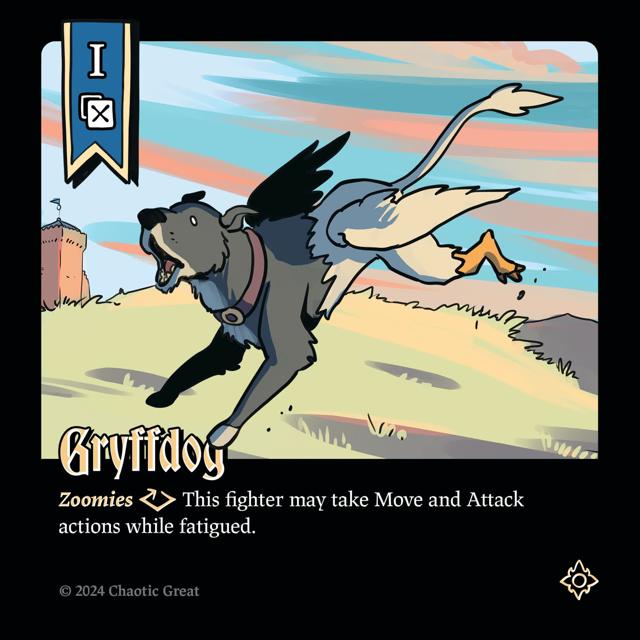
I play Gryffdog.
LESS OPERATING. MORE COMMENTATING.
The local app listens for card calls and sends recognized cards to your overlay. Keep the conversation moving without reaching for an image folder.
Put the card art on screen as you discuss it. Help newcomers follow the action and regulars see the details that matter.
Hold a card, clear the overlay, or switch to manual control. Uncertain matches can be rejected, and you can override a call at any time.
YOUR AUDIO STAYS WITH YOU
Recognition runs on your computer. Once setup and model downloads finish, the microphone and OBS overlay work locally—without sending your stream audio to a transcription service.
FROM SETUP TO STREAM
Import your own library in the local app, or start with the included Gudnak cards.
Download and extract the app, then open the launcher. First-run setup installs dependencies and downloads the speech models.
Choose your microphone and add Herald’s local URL as an OBS Browser Source. Position the card wherever it fits your scene.
Say a phrase such as “I play Gryffdog.” Use the console to select, hold, or clear a card whenever you want.
Bring the cards that matter to your audience into Herald. Open “My card libraries” in the downloaded app to get started.
Image and ZIP import, name and alias editing, and active-card selection are available locally. Online library sync, accounts, and paid plans are still planned.
TAKE HERALD TO YOUR NEXT STREAM
Explore the cards in your browser, or download Herald to use local voice recognition and OBS.
Install Python 3.12 or 3.13, extract the ZIP, and open Launch Herald.command on Mac. Windows includes a Launch Herald.cmd launcher but has not been verified on a Windows machine. This is a source download, not a signed installer.
First launch needs internet to install dependencies and download roughly 600 MB of speech models. Allow a few minutes. Recognition and the local overlay then work without a cloud transcription connection.
The web console supports manual card selection and a display window in the same browser. Microphone recognition and the OBS overlay run in the downloaded app. Keep Herald open while streaming.